Drupal Install Guide
Statcounter provides customisable hit counters, visitor tracking, web analytics and website stats for Drupal.

- Sign up for an account at Statcounter to get your code.
- Copy the StatCounter code.
- Login to Drupal and click the Structure button at the top
- Click Block layout
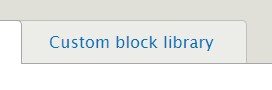
- Click Custom block library
- Click add custom block
- At the bottom chance Text format to Full HTML
- Click Source
- Paste the StatCounter code
- Click Save
- Click Block layout tab
- Scroll down and click Place Block button next to Footer
- Click Place Block button next to StatCounter
- Click Save block
- Click Save blocks









The StatCounter code should now be up and tracking on your Drupal site.
Get Started
Sign up for a Statcounter account using our Drupal installation guide.
Try it for FREE!Already a Member?
You can reinstall Drupal on your Statcounter project.
Installation Guides A - Z
- Adobe Contribute
- Adobe Muse
- Adobe Pagemill 3.0
- Adobe Portfolio
- BBEdit
- Beep
- BigCommerce
- Blogger
- BluDomain
- Britnett
- BuilderAll
- Cargo Collective
- Carrd
- Chime CMS
- Cloudflare Zaraz
- ClubRunner
- ComfyPage
- Concrete CMS
- create.net (DoYourOwnSite)
- Default
- deviantART
- Dreamweaver
- DreamWidth
- Drupal
- Duda
- eBay
- Ecwid store
- Exposure.co
- Expression Web
- Facebook Instant Articles
- Format.com
- Frames
- Frontpage 2000
- Frontpage 2002
- Frontpage 97/Express
- GoDaddy
- Google Sites
- Google Sites (new)
- Google Tag Manager
- Homestead
- HoTMetaL Pro
- HubSpot
- IMCreator
- iWeb
- iWeb (alternative)
- Jimdo
- Joomla
- Magento
- Media Wiki
- Microsoft Office Live
- Microsoft Publisher
- Moodle
- MSN Groups
- MSN Spaces
- Multiply
- MyBoomerPlace
- Net Objects Fusion
- Netscape Composer
- NVU editor
- OJS 3.1 (Open Journal System) Install Guide
- Online Picture Proof
- OpenCart
- PBase
- Photodeck
- PhotoShelter
- Posterous
- Prestashop
- ProPhoto Blog
- Qufoto
- Rapidweaver
- React
- Register.com
- Sandvox
- Serif Webplus 10
- Shopify
- Showit
- SingSnap
- Site123
- SiteSkins
- SmugMug
- Sparkle
- squadhelp
- SquareSpace
- Tagged
- theimagefile
- Tripod
- Tumblr
- TypePad
- Typo3
- vBulletin
- Vistaprint
- Visual Page 2.0
- Volusion
- Webflow
- Webnode
- Webs
- webShaper Install Guide
- Website X5 Pro
- WebStarts
- Weebly
- Wikispaces
- Wix html5 version
- Wix Premium
- WordPress
- WordPress.com
- WordPress.org
- Xanga
- Xara
- Xenforo
- Yahoo! Online Store
- Yahoo Groups
- Yahoo! Site Builder
- Yahoo Small Business
- Yola
- Yuku
- Zencart
- Zenfolio
- Zine Studio